VM Smart Filters
Help shoppers find products by colour, material, size, dimensions and weight.
How the filters work
VM Smart Filters displays filters using the public custom fields assigned to your products. Shoppers select a value or enter a measurement range, and the page reloads with matching products.
Product attributes
Searchable String fields appear as selection lists for attributes such as colour, material and size.
Measurement ranges
Property fields provide minimum and maximum filters for length, width, height and weight.
Combined selections
Products must match every selected filter. For example, Colour: Blue and Size: Large returns products matching both.
1. Installation
Install VirtueMart first. Your site must meet the PHP requirements of its installed Joomla and VirtueMart versions, with PHP 8.1 as the extension minimum.
- Download the complete VM Smart Filters package from your purchase link.
- In Joomla, open System → Install → Extensions.
- Upload
pkg_vm_smartfilters_v1.1.9.zip. - Verify that System - VM Property Filters and Installer - VM Smart Filters Update Key are enabled under System → Manage → Plugins.
2. Create searchable custom fields
Use VirtueMart’s String custom fields for text attributes such as Colour, Material and Size.
- Open VirtueMart → Products → Custom Fields.
- Create a field and select String (S) as its type.
- Enter a title such as Colour.
- Apply the settings below and save.
| Setting | Value |
|---|---|
| Custom Field Type | String (S) |
| Published | Yes |
| Searchable | Yes |
| Administrator only | No |
| Hidden | No |
| Field-level shopper-group restriction | None |
Assign values to products
Open a product’s Custom Fields tab, add your fields and enter their values. For example: Colour = Blue, Material = Plastic, Size = Medium. Save the product and ensure it is published and assigned to the category used for your demonstration.
Use plain values such as Blue, Cotton or Large. Avoid the literal value 0 and values containing quotes, angle brackets or ampersands.
3. Publish the filtering module
- Open Content → Site Modules and select VM Smart Filters. Create a module of that type if needed.
- Set its status to Published.
- Choose a template position beside or above your product listing.
- Assign the module to your VirtueMart Category Layout menu item.
- Save and open the category on your website.
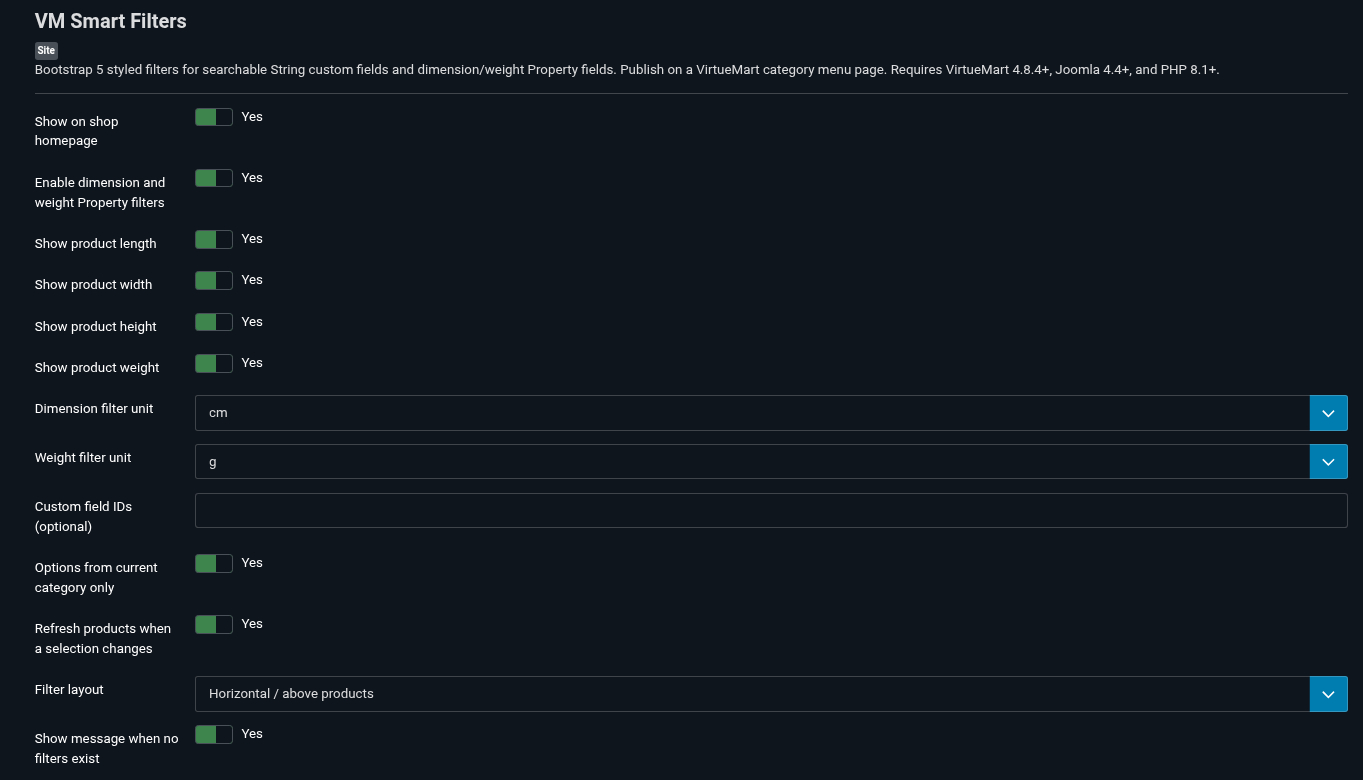
| Setting | Purpose |
|---|---|
| Orientation | Choose Vertical for a sidebar or Horizontal for a compact filter bar. |
| Custom field IDs | Leave empty for automatic discovery, or enter a comma-separated list of field IDs to select the fields and their order. |
| Options from current category only | Enable for products directly assigned to the current category. Disable if the listing includes products from descendant categories. |
| Automatic submission | Refresh the listing automatically when a String value is selected. |
| Show on shop homepage | Enable to display filters on the VirtueMart shop homepage. |
Publish one filtering module per category page. The module displays on VirtueMart category views; it does not display on article or individual product detail pages.
4. Filter by dimensions and weight
- Enter each product’s measurements and units in its Product Dimensions and Weight tab.
- Create a published, public Property (P) custom field.
- Assign that field to the product and select one of the supported properties below.
- Enable dimension and weight Property filters in the module and choose which measurements to display.
- Choose the filter units. Shoppers can enter a minimum, maximum or both, then press Show products.
| Filter | Property value |
|---|---|
| Length | product_length |
| Width | product_width |
| Height | product_height |
| Weight | product_weight |
Units are converted automatically. A width range of 60–80 cm can match products stored as 70 cm, 0.7 m or 700 mm. Boundaries are inclusive.
Supported dimension units: mm, cm, m, in, ft, yd. Supported weight units: mg, g, kg, lb, oz. Zero or unfilled measurements are excluded when a range is active.
5. Example: Modular Storage Box
Modular Storage Box
A practical storage box for organising tools, accessories and everyday items at home, in the office or in your workshop.
| Attribute | Example value |
|---|---|
| Colour — String field | Blue |
| Material — String field | Plastic |
| Size — String field | Medium |
| Length | 40 cm |
| Width | 30 cm |
| Height | 25 cm |
| Weight | 1.2 kg |
Select Blue to demonstrate the colour filter. Combine it with Plastic, or enter a width range of 25–35 cm.
One product demonstrates the controls. To demonstrate how filtering narrows results, add more published products with different values.
6. Using and clearing filters
- Select one value per String field.
- Enter measurement ranges and press Show products.
- Use the × beside a selected filter to clear that filter.
- Use the Clear filters control to reset all selections.
Numeric ranges persist through sorting and pagination and reset when the category changes. Available options do not shrink after another filter is chosen, so some combinations may return no products.
7. Updates and your download key
Keep Installer - VM Smart Filters Update Key enabled. Open its settings under System → Manage → Plugins and paste the update key from your purchase email.
Alternatively, enter the key under System → Update Sites → VM Smart Filters Package Updates in the Download Key field.
The installer plugin sends your site hostname for licences with a site limit. Update access follows the validity and domain allowance of your purchase. Installed filters continue working after update access expires.
8. Troubleshooting
| Problem | What to check |
|---|---|
| The module is missing | Check publication, access, template position and menu assignment. Open a VirtueMart category view and verify that eligible products have public filter fields. |
| A String filter is missing | Check that the field is String, published, searchable and public, with values assigned to published products. |
| A measurement filter is missing | Assign its Property field to the product, enter measurements and units, and enable that measurement in the module. |
| No products match | Check the combined selections, category, manufacturer, keyword and direct product assignments. Clear filters and try one at a time. |
| Blue also matches Dark Blue | VirtueMart controls exact versus substring matching. For exact matching, configure strictCustomfieldTags=1 using your supported VirtueMart configuration workflow. |
| The update download fails | Check the update key, licence validity, domain allowance and whether the installer update key plugin is enabled. |
VM Smart Filters supports searchable String fields and Property filters for length, width, height and weight. Price, stock, plugin-backed custom fields and inherited child-product measurements are outside this version’s scope.
Module Administrator view: