Setup in pictures
Follow the screens. Understand the settings. See what your customers receive.
Screenshots are followed by explanations of the visible settings, practical examples, and links to the detailed reference.
Create a reusable download plan
Start in VirtueMart → Products → Custom Fields → New. A reusable custom field defines the licence and email defaults. Later, assign it to a product and choose that product’s folder and file.
1. Choose the plugin and configure the field
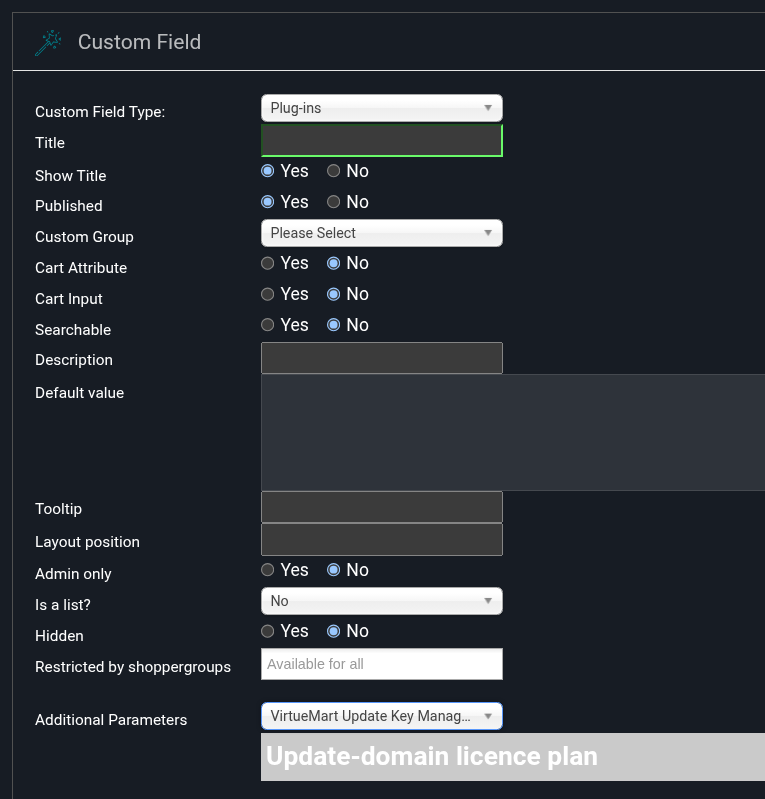
1Custom Field Type
Plug-ins
Select the plugin field type to load Update Key Manager’s settings.
2Title
Enter a name
Example: Updates — Unlimited / 365 days. This identifies the reusable field; if Show Title is Yes, choose a title suitable for shoppers, such as Current version.
3Show Title
Yes or No
Yes displays the field title; No hides the title. It does not set the licence term.
4Published
Yes
Enable this custom field so it can be used. An unpublished field is not the intended setup for a live product.
5Custom Group
Leave unselected unless you use groups
Optional VirtueMart field grouping. This is not a domain-limit or licence-plan selector.
6Cart Attribute
Yes — change the No shown in the screenshot
Required for the custom field’s data to be retained with order items and used for order download links. The plugin also enforces Yes when its custom-field save hook runs.
7Cart Input
No
This field does not ask shoppers to enter a value or choose a product variant. The plugin enforces No on save.
8Searchable
No
Not needed for protected-download licensing. This is a VirtueMart search-related option, not a file search function.
9Description
Optional; usually leave blank
A description for the custom field. It does not replace the purchase-email body or store the download filename.
10Default value
Leave blank
The manager uses its own parameters below and the product’s assigned field. Do not paste a ZIP filename, path, update key or email template here.
11Tooltip
Optional
A short help text for the field where supported by your VirtueMart layout. It does not change access permissions.
12Layout position
Leave blank for the default, or use a position supported by your template
Controls where the field is rendered. Check the product page after saving: extension products show only their version; single-file products show the full filename.
13Admin only
No
Keep the field available beyond the administrator. The plugin enforces No on save.
14Is a list?
No
This is not a list of shopper-selectable values. Uploaded files are managed on the product screen, not through this option.
15Hidden
No
Use No for the intended visible frontend version/filename display. This setting does not make an uploaded file public; downloads remain protected.
16Restricted by shoppergroups
Available for all, unless intentionally restricting the field
Affects which shopper groups can use/see the custom field. It does not control the number of update domains. Test purchases for every group you intend to support.
17Additional Parameters
VirtueMart Update Key Manager
Select this plugin. Its domain plan, defaults and renewal sections appear below; save/reload if necessary.
Generic field controls: VirtueMart custom-field reference. The recommended values above are for Update Key Manager.
2. Set the licence and purchase defaults
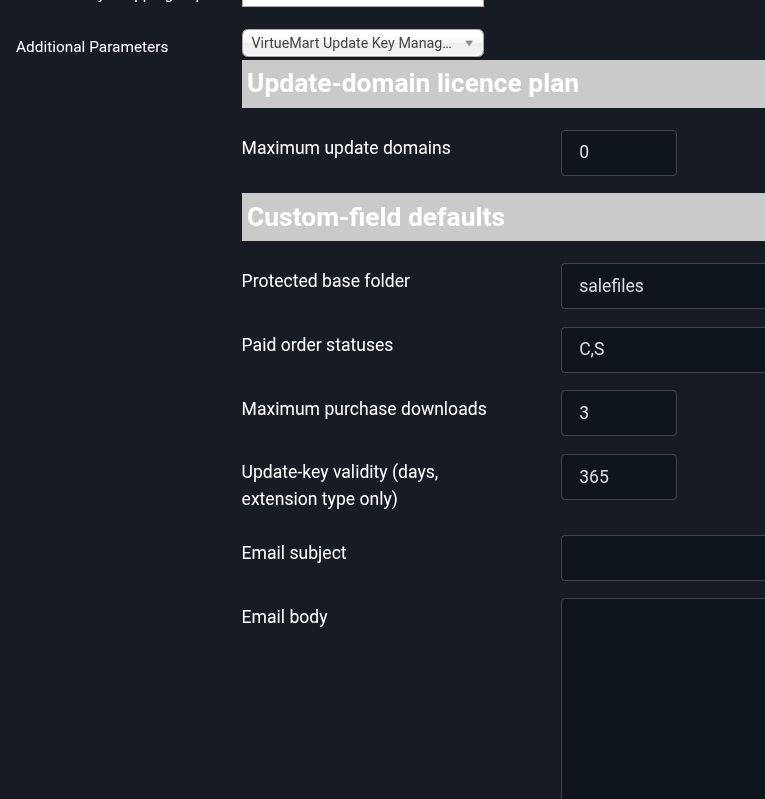
1Maximum update domains
Screenshot: 0 = unlimited
For extension updates, 1 allows one registered hostname; 3 allows three. Range: 0–1000. Domains register when the key is used for updates. This is separate from purchase-download counts.
2Protected base folder
Screenshot: salefiles
A folder inside the configured VirtueMart Safe Path. Enter a folder name, not an absolute path or URL. Product-specific subfolders are configured later on each product.
3Paid order statuses
Screenshot: C,S
Comma-separated order status codes that trigger issuance. Confirm their meanings in your own store and choose only statuses that represent accepted payment. This is not an automatic revocation rule for cancelled orders.
4Maximum purchase downloads
Screenshot: 3
Allows up to three purchase-download requests per issued licence. Range: 1–1000; zero is not an unlimited option. Active extension update downloads are not counted against this purchase limit.
5Update-key validity (days, extension type only)
Screenshot: 365
Sets the extension licence duration when issued. Range: 1–3650 days. It does not set a time expiry for single-file products, which use the purchase-download limit.
6Email subject
Blank in the screenshot
A custom purchase/licence email subject. Blank inherits the global plugin value; if that is also blank, a translated default is used. Example: Your download: {product}.
7Email body
Blank in the screenshot
The purchase/licence email message. Blank inherits the global value, then falls back to the translated default. Enter plain text with placeholders, not HTML markup. Include {download_url}; for extensions include {key} and {expires}.
{product} product name · {order} order number · {download_url} protected purchase link · {download_limit} allowed purchase downloads · {key} extension update key · {expires} extension expiry date. Key and expiry are empty for single-file purchases.
3. Configure an optional renewal reminder
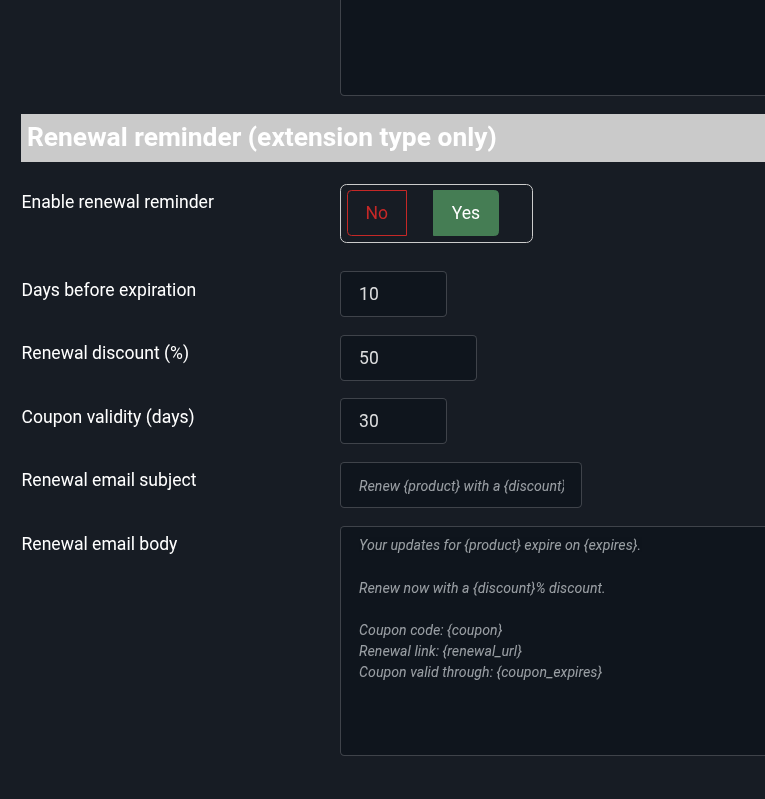
1Enable renewal reminder
Choose Yes to enable; factory default is No
Applies to extension licences only. The Joomla renewal scheduled task must be enabled and running, and outgoing email must work. Enabling this does not automatically charge the customer.
2Days before expiration
Screenshot: 10
The reminder becomes eligible within ten days before expiry. Delivery occurs on a scheduled-task run, not necessarily at an exact time. Range: 1–365.
3Renewal discount (%)
Screenshot: 50%; factory default: 10%
The renewal coupon’s percentage discount. With 50, the offer is 50% off. Range: 0.01–100. Choose a value suitable for your renewal offer.
4Coupon validity (days)
Screenshot: 30
The generated coupon remains valid for this many days from its creation, not from the original purchase. Range: 1–365. Coupon expiry and update-key expiry are different dates.
5Renewal email subject
Grey italic text shows a suggested default
Leave blank to use the inherited/default subject, or enter your own. Example: Renew {product} with a {discount}% discount.
6Renewal email body
Grey italic text shows a suggested default
Leave blank to use the inherited/default message, or enter plain text. Keep the coupon, renewal link and relevant dates so the customer knows how to act. The fields in the screenshot are hints, not evidence that custom text has been saved.
{product} product name · {expires} licence expiry · {discount} discount percentage · {coupon} coupon code · {renewal_url} renewal purchase link · {coupon_expires} coupon expiry.
Reminder settings are stored when the licence is issued. Later changes to the custom field do not rewrite existing customers’ renewal terms. The customer must complete a paid renewal purchase to obtain a new licence.
4. Example: one domain and 182 days
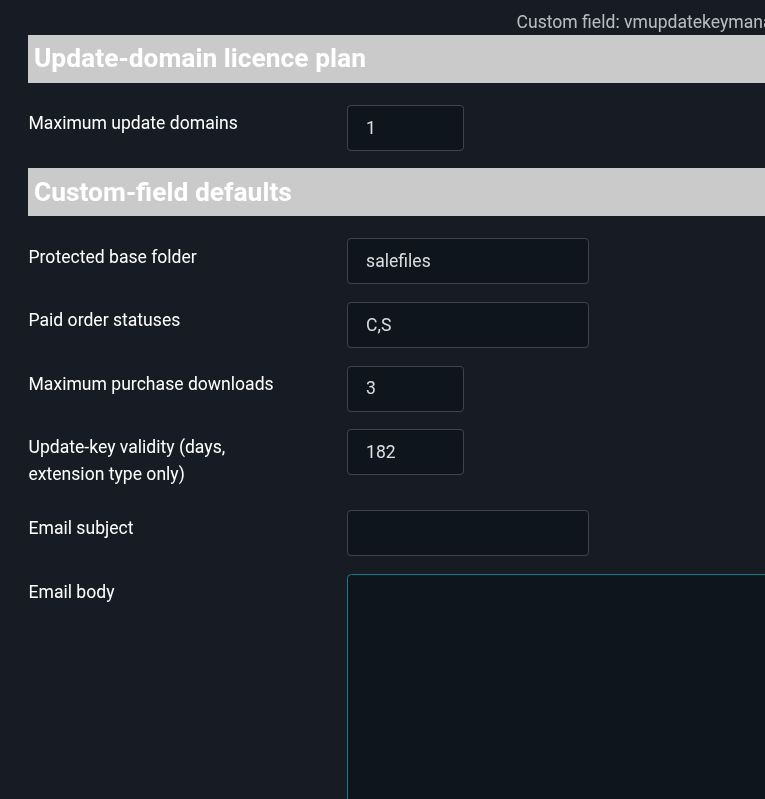
1Maximum update domains
1
This example permits one registered hostname for extension updates, instead of the unlimited-domain plan shown earlier.
2Protected base folder
salefiles
Uses the same protected base folder. Create the product’s own subfolder when assigning this field to a product.
3Paid order statuses
C,S
The same example issuance statuses. Verify your store’s status codes before using them.
4Maximum purchase downloads
3
Still three purchase downloads. The one-domain restriction does not reduce this to one download.
5Update-key validity (days, extension type only)
182
A 182-day licence term. Describe the offer as 182 days rather than promising exactly six calendar months.
6Email subject
Blank
Inherits the global subject, then the translated default if needed. Use a custom subject if you want to name this plan.
7Email body
Blank
Inherits the global/default body. Use {expires} so the message shows the actual expiry date rather than a fixed date.
| Setting | Screen 2 | Screen 4 |
|---|---|---|
| Update domains | 0 — unlimited | 1 — one hostname |
| Update validity | 365 days | 182 days |
| Purchase downloads | 3 | 3 |
| Base folder | salefiles | salefiles |
Create separately named reusable fields if you sell different plans; assign the appropriate one to each product. Do not attach conflicting manager fields to the same product.
Add a protected download
Use this product setup for a versioned Joomla extension ZIP or for one exact protected file. The screenshots show the fields on the VirtueMart product edit page.
Extension package with update keys
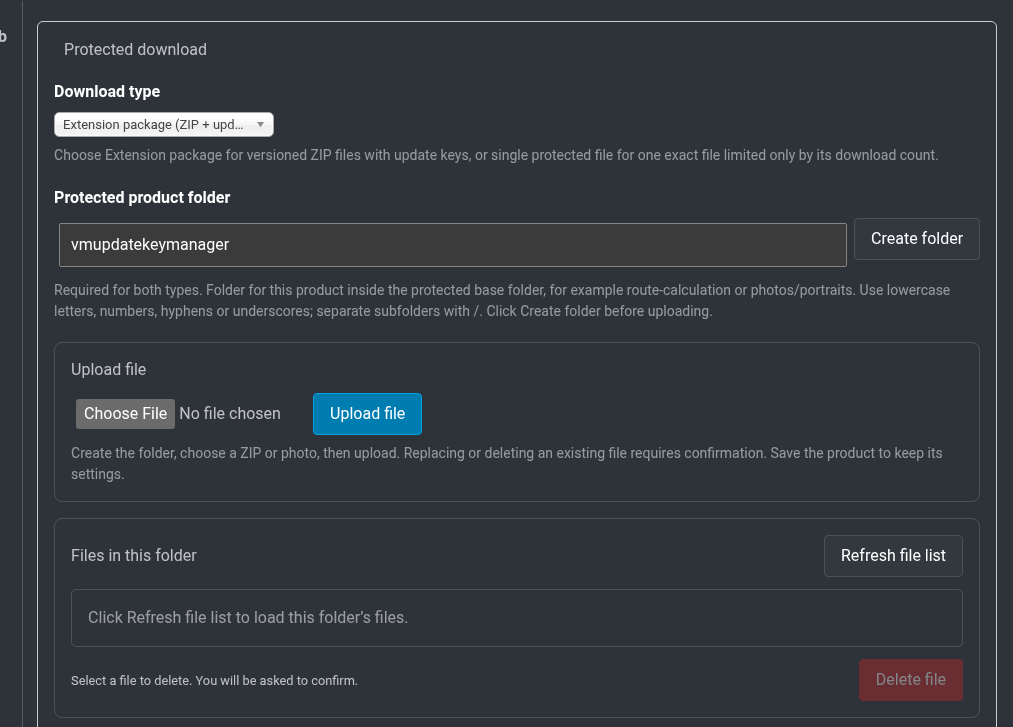
Download type
Select the extension-package option for versioned ZIP files that use update keys and update feeds. Choose the single-file option instead when customers should receive one exact file with a download-count limit only.
Protected product folder
Enter a folder path inside the configured protected base folder, such as my-extension. Use lowercase letters, numbers, hyphens, or underscores; use / for subfolders. Click Create folder before uploading.
Upload file
Choose the ZIP on your computer and upload it to this product folder. Replacing an existing file requires confirmation. Save the VirtueMart product after changing its settings.
Files in this folder
Click Refresh file list to load the folder contents. Select a file before deleting it; deletion asks for confirmation. Verify the selected folder and file before confirming.
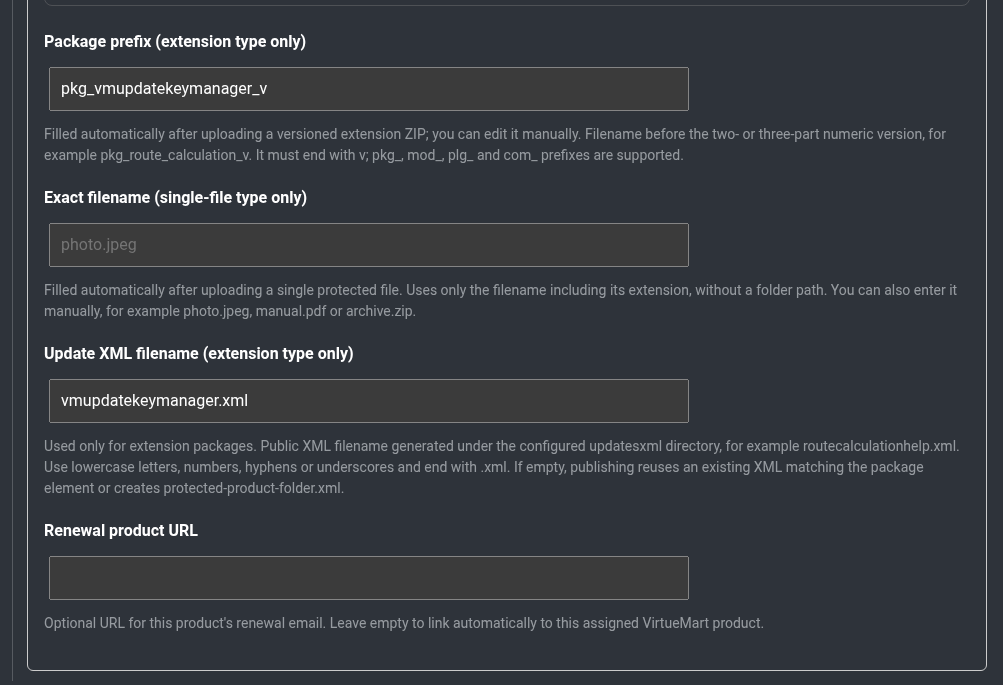
Package prefix (extension type only)
Filled from a versioned extension ZIP when possible. The prefix is the part of its filename before the version number, such as pkg_my_extension_v; keep the trailing v so versions can be matched.
Exact filename (single-file type only)
For a single protected file, this is its exact name including the extension, without a folder path (for example, manual.pdf). It is filled when you upload a file and can also be entered manually.
Update XML filename (extension type only)
Name the public update feed file using lowercase letters, numbers, hyphens, or underscores, and end with .xml. Leave it blank to reuse a matching feed or create a feed name from the product folder.
Renewal product URL
Optional destination for the renewal link in this product’s renewal email. Leave it empty to link to the VirtueMart product assigned here.
Single protected file
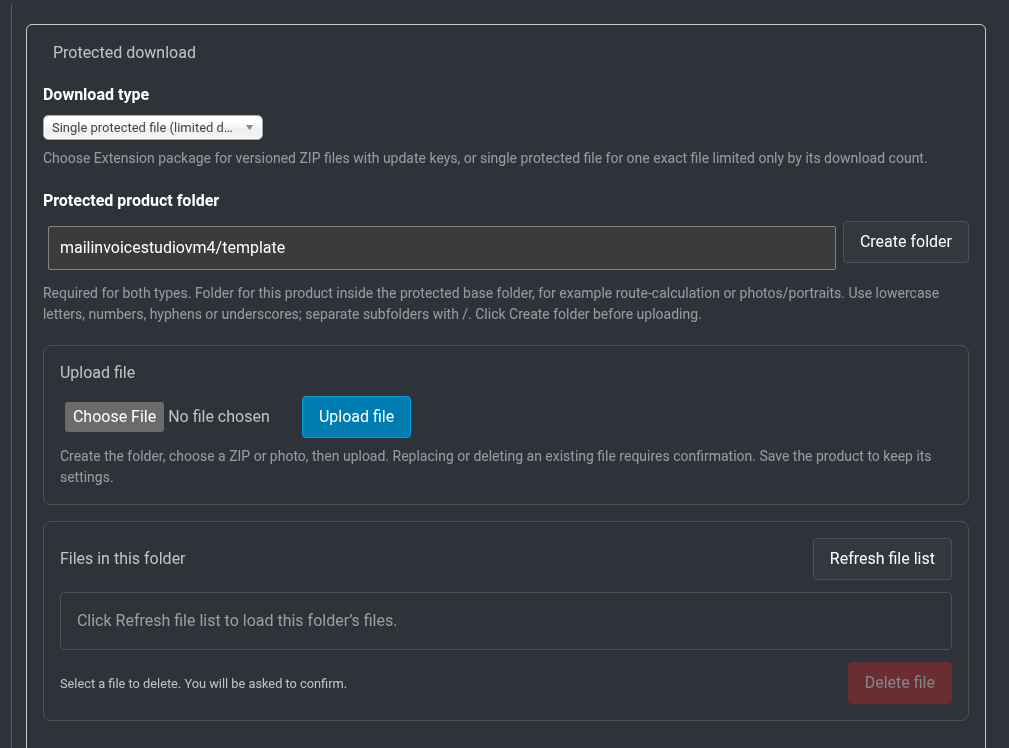
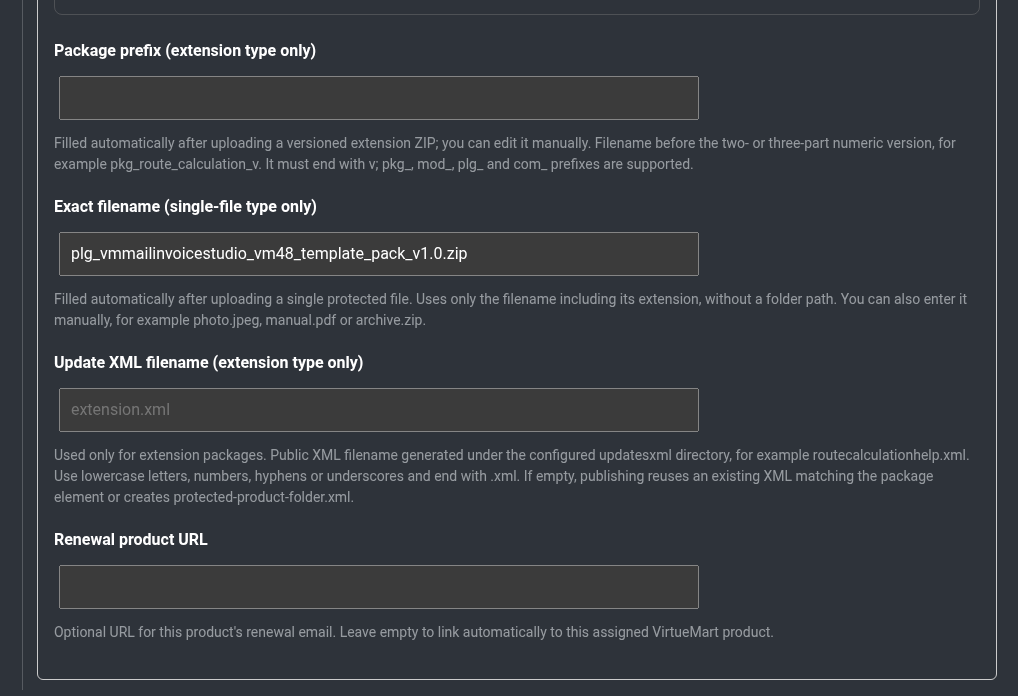
The folder, upload, file-list refresh, and confirmed deletion controls work the same way as for an extension package. The single-file option does not use extension update keys or an update XML feed; its access is limited by the purchase download count.
From purchase to download
See the product page, paid order, email and protected download from the customer's perspective.
Screenshots pending: extension purchase, single-file purchase, download limits and entering an update key.
Customer lifecycle reference →Manage access and publish updates
Find a licence, review its limits, revoke access, publish a new release and configure renewals.
Licence actions
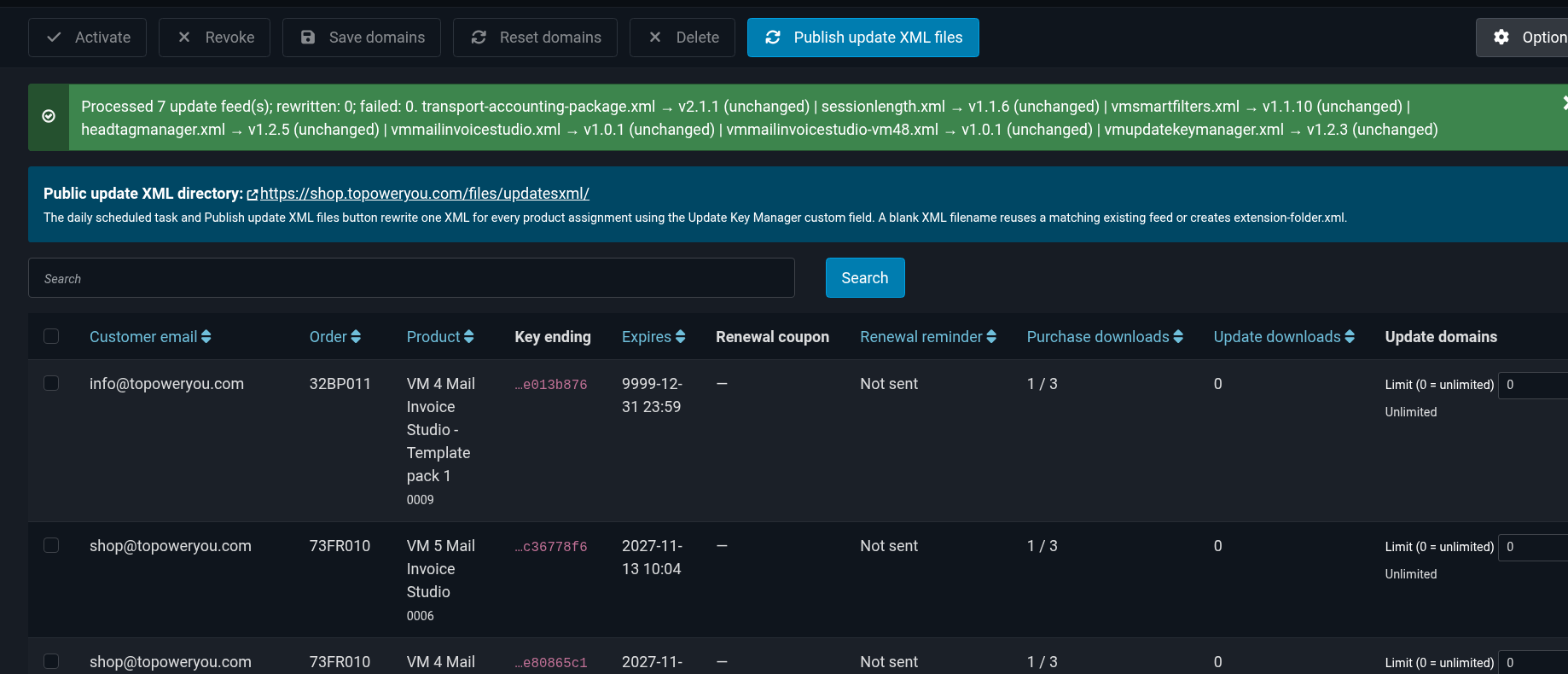
Select one or more rows to use Activate, Revoke, or Delete. Check the selected customer and product before applying an action.
Update domains
Edit the domain limit in the row, then choose Save domains. A limit of 0 means unlimited. Use Reset domains only when you intend to reset the recorded domain usage.
Publish update XML files
Regenerates the public update feeds from the configured product assignments. The result banner reports feeds processed and any failures; check it after publishing.
Search and licence columns
Search to find a record. The table shows the customer and order, product, masked key ending, expiry, renewal status, purchase-download usage, update-download usage, and update-domain limit. Treat customer details and key fragments as private.